Syrve POS is one of the most popular restaurant management systems, but it only runs on Windows. If you have a MacBook or iMac — that's not a dealbreaker. In this article, we'll cover three real ways to run Syrve POS on macOS: from the paid but convenient Parallels to the completely free UTM, and explain when it's easier to just use cloud-based Syrve Web.
WLTT deploys Syrve POS for restaurants and cafés across Thailand — in Phuket, Chonburi (Pattaya), Bangkok, Koh Samui, and Krabi. We get the question "can I use it on a Mac?" regularly — especially from owners who are used to the Apple ecosystem. The answer is yes, but there are nuances.
Why Syrve POS doesn't run on Mac natively
Syrve POS (Syrve Office, Syrve Front, Syrve Server) is a Windows application. It's built on .NET Framework, uses Microsoft SQL Server, and requires Windows 8.1 or later. There is no native macOS version, and judging by the developer's roadmap, none is planned.
This means running the full Syrve POS client on a Mac requires a virtual machine with Windows. However, there's also a cloud alternative — Syrve Web, which works directly in Safari or Chrome.
Option 1: Parallels Desktop (recommended)
Parallels Desktop is the most popular solution for running Windows on Mac. It supports Apple Silicon (M1, M2, M3, M4), runs fast, and is stable. For a restaurant business in Phuket, Bangkok or Pattaya where the POS system must work without failures, this is the optimal choice.
What you'll need
- MacBook, iMac, or Mac mini with 8 GB RAM or more (16 GB recommended)
- SSD with 40+ GB free space
- Parallels Desktop (from $99/year, 14-day free trial available)
- Windows 11 ARM (downloads automatically from Parallels)
- Syrve POS license (provided by your authorized Syrve partner)
Step-by-step installation
- 1Download and install Parallels Desktop from the official website parallels.com.
- 2Launch Parallels → it will offer to download Windows 11. For Apple Silicon Macs, the Windows 11 ARM version downloads automatically. Click "Install".
- 3Wait for Windows installation to complete (~15 minutes). Parallels configures everything automatically: drivers, network, audio.
- 4In virtual machine settings (⚙️ → Hardware → CPU & Memory), allocate at least 4 GB of RAM. If your Mac has 16 GB — allocate 6–8 GB.
- 5Open Windows and download the Syrve POS installer from your authorized partner's website (or from syrve.com). Install it the standard way.
- 6Launch Syrve POS and enter your license data. The system is ready to go.
Important settings
- Time synchronization. Make sure the time zone in Windows matches macOS. For restaurants in Thailand this is UTC+7 (Asia/Bangkok). Time desync leads to errors in reports and fiscal data.
- Shared folders. Enable "Shared Folders" in Parallels settings — this allows file exchange between macOS and Windows without USB drives.
- Coherence mode. Lets you run Syrve POS as a regular Mac application — without the visible Windows desktop. Convenient for daily use.
- Auto-start. Set up automatic Windows launch when Mac boots (Parallels → Preferences → General → Start Windows automatically).
Pros and cons of Parallels
- ✅ Most stable Syrve POS experience on Mac
- ✅ Full Apple Silicon compatibility (M1–M4)
- ✅ Coherence mode — Syrve POS looks like a native app
- ✅ Automatic Windows installation, no technical knowledge required
- ❌ Paid subscription ($99/year for Standard Edition)
- ❌ Uses additional resources — a Mac with 8 GB RAM will run tight
Option 2: UTM (free)
UTM is a free, open-source virtualization app for Mac. It uses Apple Virtualization Framework and supports Apple Silicon. It's an excellent alternative to Parallels if you don't want to pay for a subscription.
Installing Windows via UTM
- 1Download UTM from the official website mac.getutm.app (free) or from the Mac App Store ($9.99 — same version but with auto-updates).
- 2Download Windows 11 ARM ISO. The easiest way is through the free CrystalFetch utility (available on the Mac App Store) — it downloads the official image directly from Microsoft.
- 3In UTM, click "+" → "Virtualize" → "Windows" → point to the downloaded ISO.
- 4Allocate 4+ GB RAM and 40+ GB of disk space.
- 5Start the virtual machine and go through the standard Windows 11 installation.
- 6After Windows installation, run the UTM Guest Tools installer (appears as a virtual drive) — this adds display, network, and clipboard drivers.
- 7Install Syrve POS the standard way.
Pros and cons of UTM
- ✅ Completely free (or $9.99 from the App Store)
- ✅ Open-source — transparency and security
- ✅ Apple Silicon support
- ❌ No Coherence mode — Windows runs in a separate window
- ❌ Requires manual ISO download and configuration
- ❌ Slightly lower performance than Parallels
- ❌ No official support — community only
Option 3: Syrve Web (no virtual machine needed)
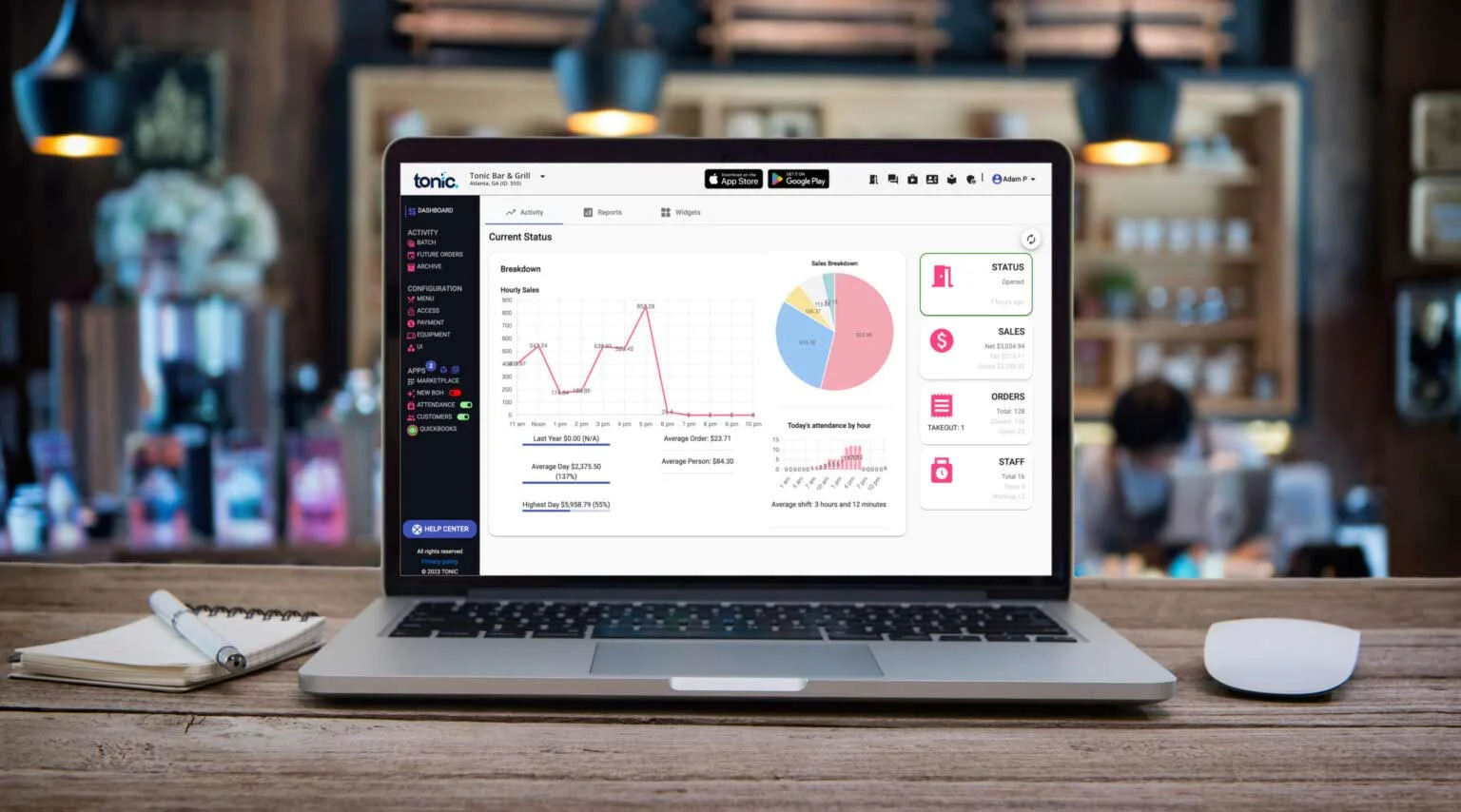
If you don't need the full Syrve Office or Syrve Front and just need to manage your restaurant remotely — use Syrve Web. It's the cloud interface of Syrve POS that works directly in a browser on any device: Mac, iPad, iPhone, Android.
What Syrve Web can do
- Menu and price management
- Real-time sales reports and analytics
- Delivery and courier management
- Marketing, loyalty programs, and promotions
- Multi-location control from a single dashboard
- Integration with delivery aggregators
What Syrve Web cannot do
- Work as a POS terminal (for taking orders at the register, you need Syrve Front on Windows)
- Deep inventory management, recipe cards, and cost calculations — Syrve Office is needed for that
- Work offline — it's a cloud-based solution
When Syrve Web is enough
If you're a restaurant owner in Phuket or Koh Samui who wants to manage the business from a MacBook while the register and kitchen run on dedicated Windows terminals, then Syrve Web is the perfect solution. You get full control without virtual machines.
Alternative: Syrve POS on Android
For smaller venues — coffee shops, bars, street food spots, food court kiosks — there's another option: Syrve POS on Android. It's a full POS terminal that runs natively on Android tablets and smartphones.
- No Windows or virtual machines required — runs natively on Android
- Hardware costs are significantly lower than Windows terminals
- Supports receipt printers and barcode scanners via Bluetooth or USB
- Ideal for venues with 1–2 registers and a compact menu
- Cloud sync with Syrve: reports, menu management and analytics available through Syrve Web
If you have a small venue and don't need advanced inventory management or recipe cards — the Android version of Syrve POS may be the optimal solution in terms of both cost and simplicity.
Comparison of the three options
| Parallels Desktop | UTM (free) | Syrve Web | Android | |
|---|---|---|---|---|
| Cost | $99/year | Free | Included in Syrve subscription | Included in Syrve subscription |
| Full Syrve POS (Office/Front) | ✅ Yes | ✅ Yes | ❌ Web panel only | ❌ Lite version |
| POS terminal (register) | ✅ Yes | ✅ Yes | ❌ No | ✅ Yes |
| Apple Silicon (M1–M4) | ✅ Yes | ✅ Yes | ✅ Yes (browser) | ❌ Android |
| Ease of setup | ⭐⭐⭐⭐⭐ | ⭐⭐⭐ | ⭐⭐⭐⭐⭐ | ⭐⭐⭐⭐⭐ |
| Performance | ⭐⭐⭐⭐⭐ | ⭐⭐⭐⭐ | ⭐⭐⭐⭐⭐ | ⭐⭐⭐⭐ |
Minimum Mac requirements
For comfortable Syrve POS operation via a virtual machine, we recommend:
- Processor: Apple M1 or newer (Intel Macs are also supported, but M-series is significantly faster)
- RAM: minimum 8 GB, recommended 16 GB (4–8 GB allocated to the virtual machine)
- Storage: SSD with at least 40 GB free space (Windows takes ~20 GB + Syrve POS ~5 GB + buffer)
- macOS: Ventura 13 or newer
FAQ
Can a Mac be used as a POS terminal with Syrve POS?
Technically — yes, via Parallels or UTM. But for a restaurant register, we recommend a dedicated Windows terminal: it's more stable, doesn't depend on virtualization, and costs less. Use the Mac for back-office and remote management.
Will kitchen printers and scanners work?
Yes. In Parallels, USB devices (printers, barcode scanners, fiscal registers) are passed through to Windows via virtual machine settings. UTM has limited USB support — check compatibility for your specific device beforehand.
Is a Windows license required?
Formally — yes. Windows 11 can be used without activation (with personalization restrictions), but for commercial use, we recommend purchasing a license. Windows 11 Home costs from $139.
What's best for a restaurant in Thailand?
Our recommendation: use dedicated Windows terminals for registers and kitchen, and a MacBook with Syrve Web for business management. This is a reliable combination where each device does what it was designed for. We implement this approach for restaurants in Bangkok, Phuket, Chonburi, Koh Samui, and Krabi.
Summary
Running Syrve POS on a Mac is entirely possible. Parallels Desktop is the best option if you need full functionality and stability. UTM is a free alternative for those willing to do manual setup. Syrve Web is the simplest path if remote management is enough.
If you need help installing Syrve POS, setting up equipment, or switching from another system — contact WLTT. We work across Thailand: Phuket, Krabi, Koh Samui, Pattaya (Chonburi), Bangkok.